
Can ChatGPT Actually Make a Presentation? We Tested It

"ChatGPT presentation" is one of the most searched AI-related queries right now. People want to know: can ChatGPT actually make a presentation? Not outline one. Not brainstorm ideas for one. Actually produce slides you could present.
The short answer is yes -- but the results depend heavily on which approach you take. We tested three different methods, all starting from the same simple prompt, to see what ChatGPT can and cannot do when it comes to making presentations. (Jump to the quick comparison table if you want the summary first.)
This review is part of our comparison of 7 AI presentation makers.
Methodology: We tested all three methods using the same prompt -- "Create a PowerPoint presentation about AI Trends in 2026 with 8 slides" -- on a free ChatGPT account in March 2026. No paid plugins, no manual editing, no custom templates. What you see below is exactly what each method produced out of the box.
Method 1: Ask ChatGPT to Generate a .pptx File Directly
The most straightforward approach. Open ChatGPT, type your prompt, and ask it to create a PowerPoint file.
We asked: "Create a PowerPoint presentation about AI Trends in 2026 with 8 slides. Include a title slide, agenda, and conclusion. Make it visually appealing with a modern tech theme."
About 30 seconds later, ChatGPT delivered a downloadable .pptx file with an inline preview. It listed the structure: title slide, agenda, five trend slides (Generative AI, AI Agents, Multimodal AI, Responsible AI, and Industry Transformation), and a conclusion. It also described the design as a "modern tech-themed" deck with dark backgrounds and neon-style accents.
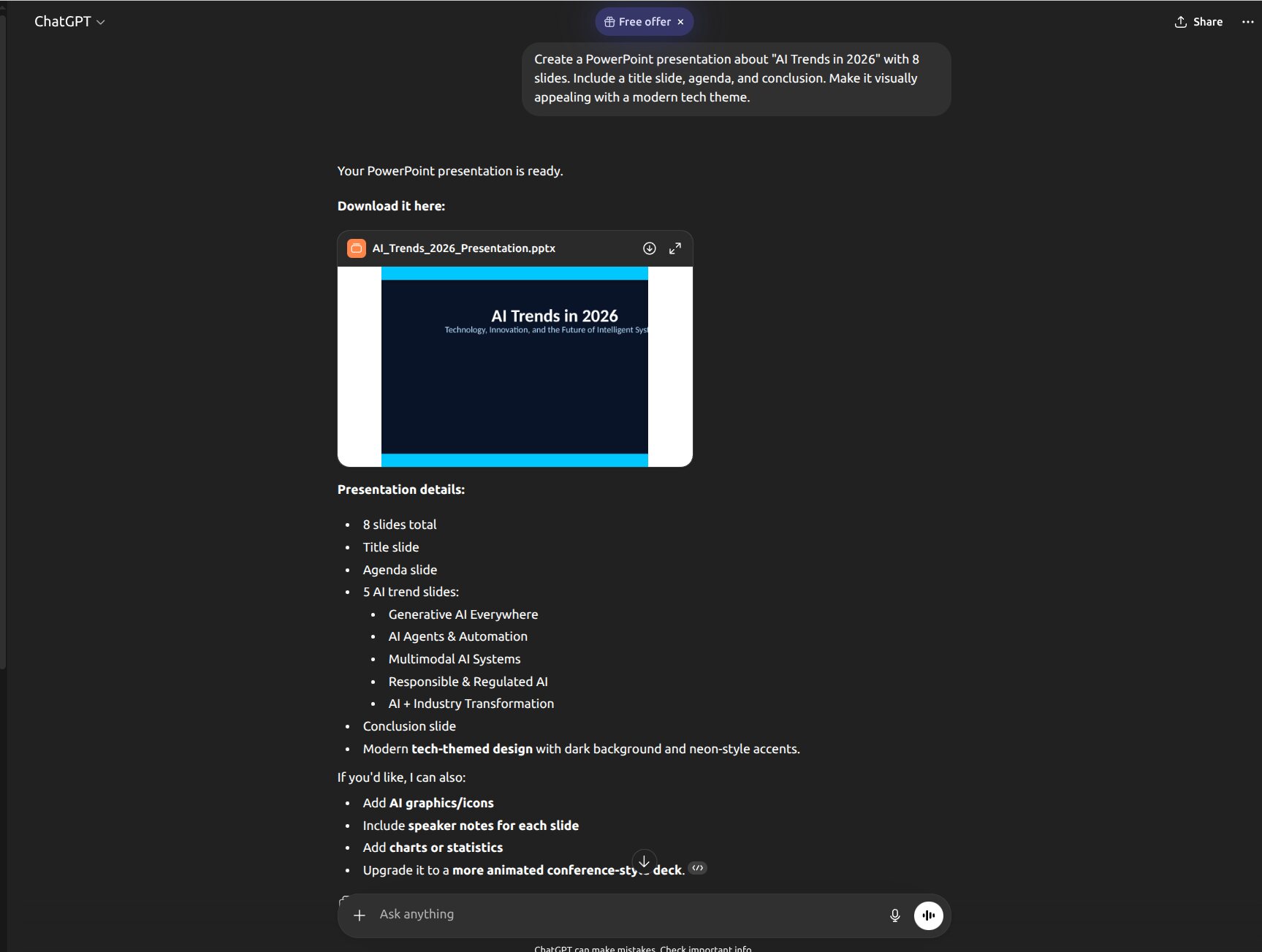
The content structure is solid. The topics are well-chosen and logically ordered. But open the file and scroll through all eight slides -- a pattern emerges immediately: every single slide has the identical layout. Bold title at the top, three bullet points in the middle, cyan accent bar at the bottom. No images. No charts. No icons. No layout variation whatsoever.
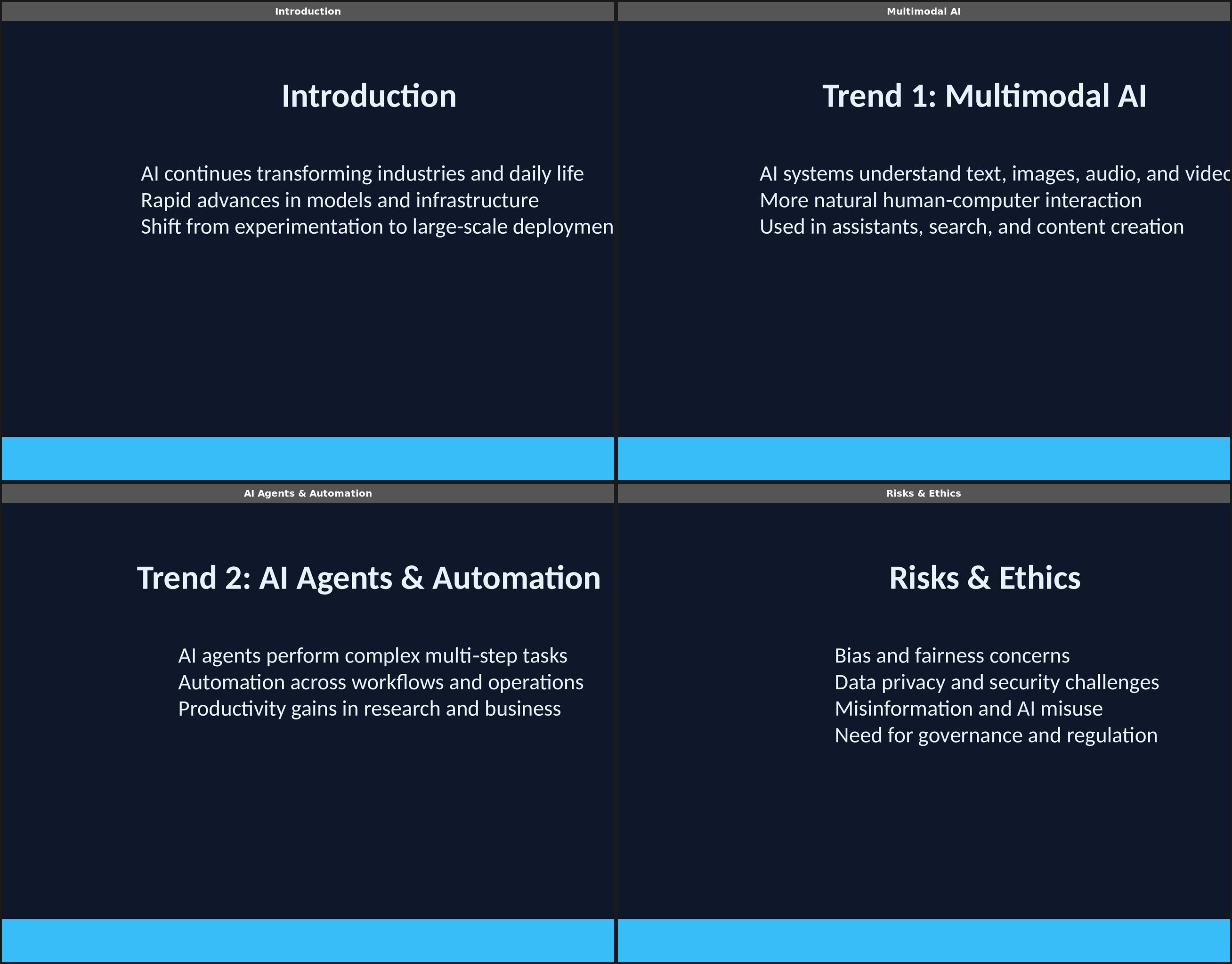
This isn't ChatGPT being lazy. It's a fundamental constraint of how it works. ChatGPT generates .pptx files by writing Python code (using the python-pptx library) behind the scenes. That library can create text boxes, set fonts, and apply background colors -- but it has no access to design templates, image libraries, layout algorithms, or visual composition logic. It's essentially writing presentation markup from scratch, character by character.
The Canvas Detour
We also tried ChatGPT's Canvas feature -- where you ask it to write a presentation outline first, then convert it to PowerPoint. The Canvas produced a structured text outline with slide-by-slide breakdowns. The outline itself was actually useful -- clear structure, good topic coverage. But when we asked ChatGPT to convert it into a PowerPoint file, the result was nearly identical to the direct generation approach: same dark background, same title-plus-bullets format, same lack of visual variety. The Canvas step added an extra round of interaction without meaningfully improving the final slides.
Method 2: GPT Store -- Third-Party Presentation GPTs
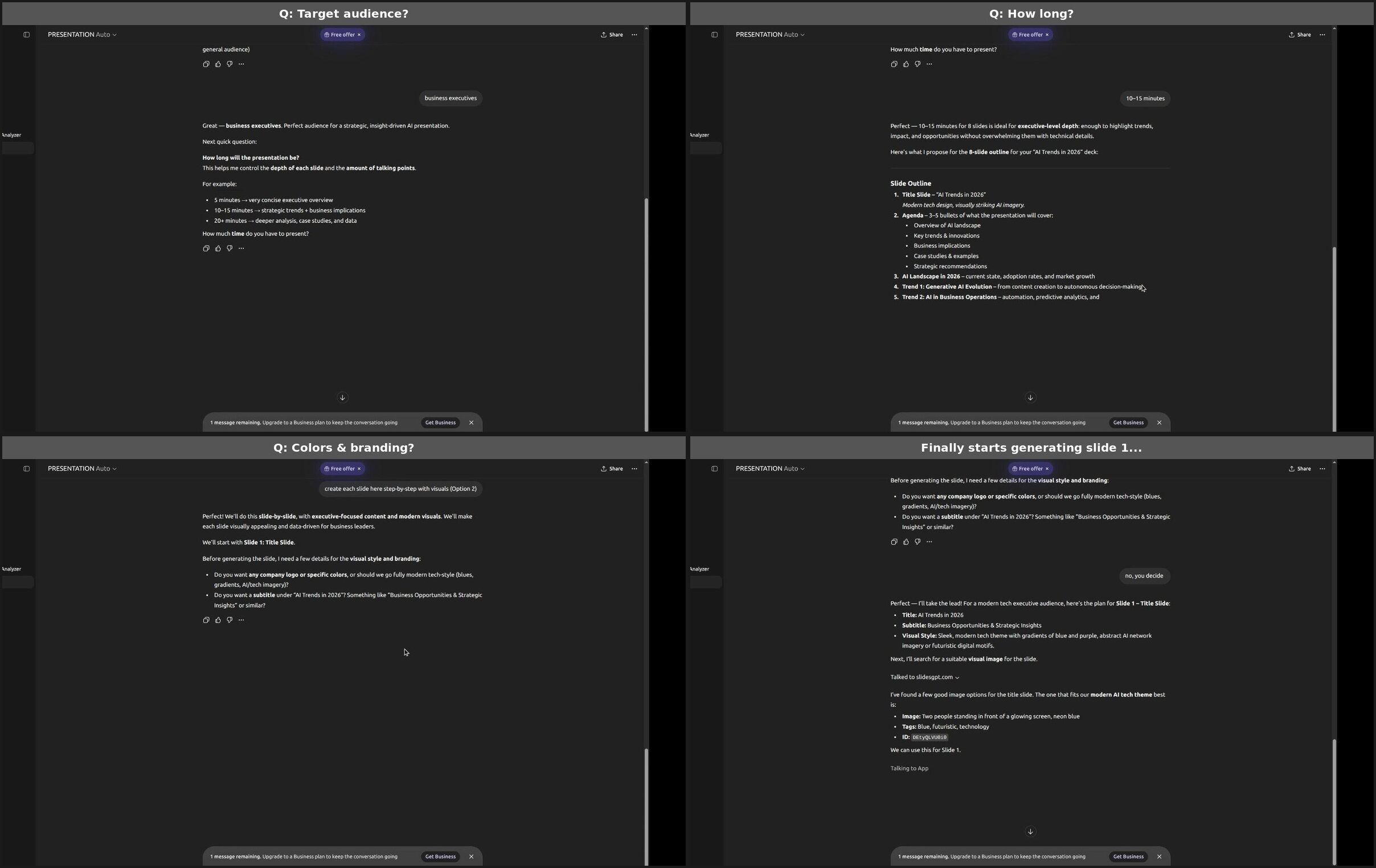
ChatGPT's GPT Store offers custom-built GPTs for specific tasks. We searched for "presentation" and tried one of the dedicated presentation GPTs. The experience was immediately different from the direct approach -- and not necessarily in a good way. Instead of generating slides from a single prompt, it launched into an extended Q&A: What's your topic? Who's your audience? How long is the presentation? Do you want a subtitle? What visual style do you prefer?
After answering several rounds of questions, the GPT started working on Slide 1. Under the hood, it called an external service (slidesgpt.com) to actually render the slide. We could see the "Talked to slidesgpt.com" indicator in the chat:
After several minutes of back-and-forth, the result was a single slide on the slidesgpt.com platform -- a basic left/right layout with some bullet points and an Unsplash stock photo. It then asked: "Do you want to apply this theme before we move to Slide 2?"
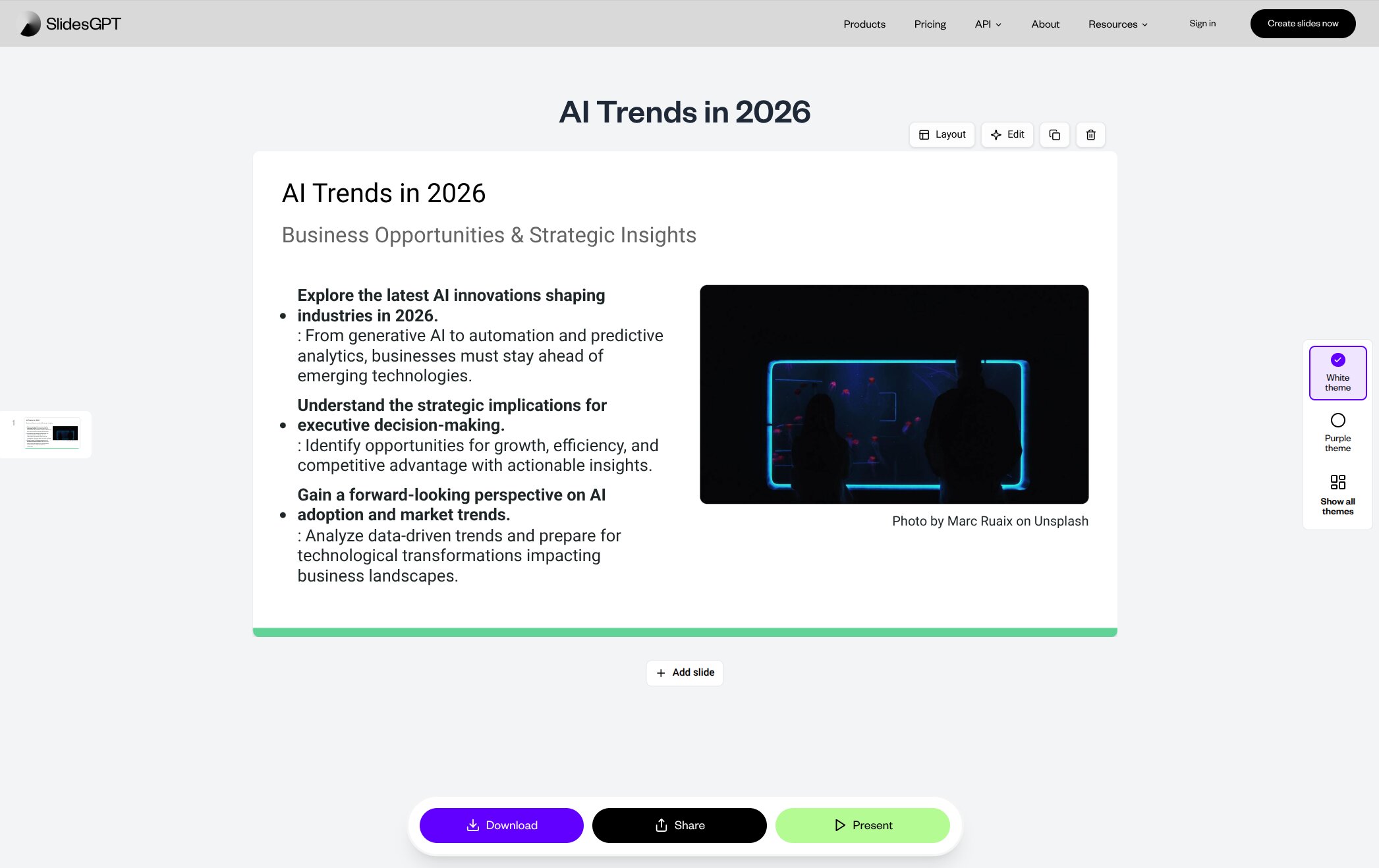
To get a full 8-slide deck through this workflow, you'd need to repeat this process for each slide individually -- answering questions, waiting for external API calls, reviewing the result, confirming, and moving on. For a complete presentation, this could easily take 15-20 minutes of active interaction.
The visual quality of the individual slide was marginally better than ChatGPT's direct output -- it had a stock photo and a cleaner layout. But the time investment and friction made it impractical for real use.
What a Purpose-Built Presentation Tool Produces
For context, we ran the same topic through PageOn.ai, a dedicated AI presentation tool, to see what a purpose-built approach looks like.
The first difference was the input flow. Instead of just taking a prompt and running, PageOn asked a few quick preference questions -- theme style, target audience, presentation purpose. But unlike the GPT Store approach, these were multiple-choice selections you could click through in seconds, not open-ended Q&A rounds. We selected the "Palantir Tech Grid" theme and "Strategic planning" as the purpose.
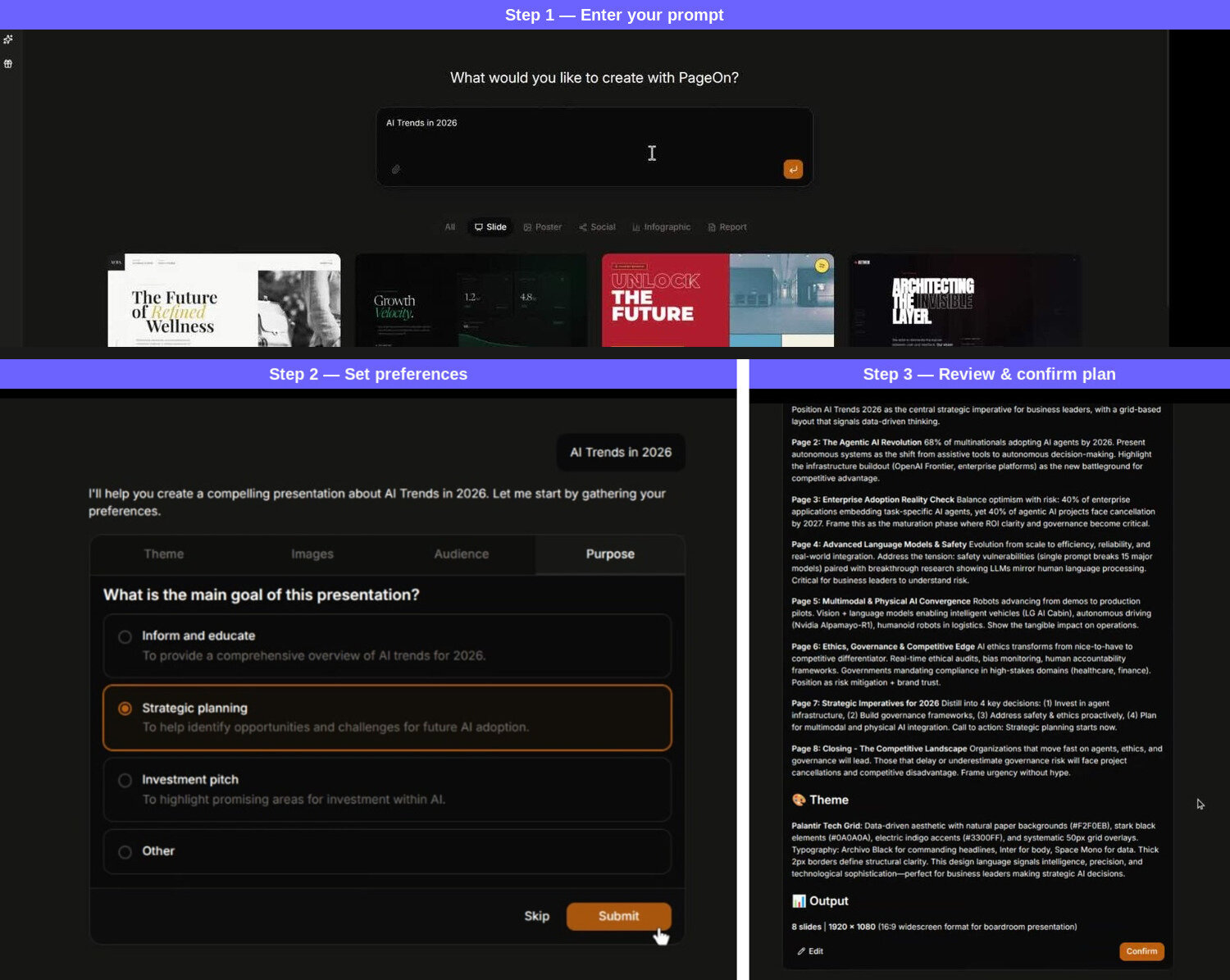
After confirming the plan, PageOn delivered a complete deck in about two minutes. The difference in output was immediately apparent.
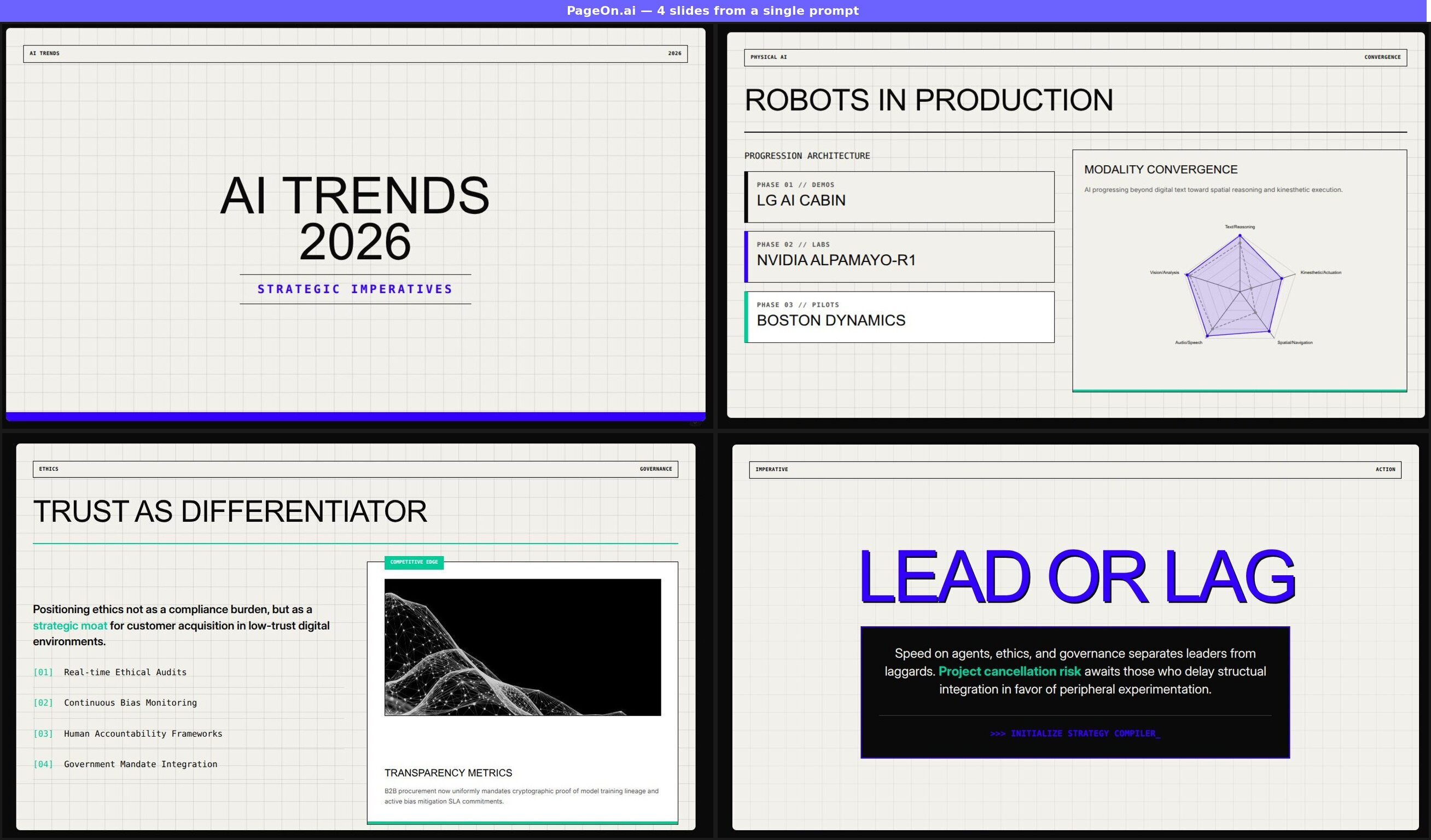
A few things stand out:
- Every slide uses a different layout. The title slide uses centered typography. The robots slide pairs a progression timeline with a radar chart. The trust slide uses a two-column layout with an AI-generated image. The closing slide goes full typographic impact. No two slides look the same.
- Data visualization is built in. The radar chart on the "Robots in Production" slide isn't a placeholder -- it maps five AI modality dimensions with actual data points.
- Content is research-backed. PageOn searched live web sources before generating, so the slides reference real companies (LG, NVIDIA, Boston Dynamics) and specific developments rather than generic talking points.
- Design cohesion. Despite the layout variety, every slide shares the same grid background, color palette (black, purple, teal accents), and typographic system. It reads as a single deck, not a collection of random slides.
The fundamental difference is architectural. ChatGPT generates slides by writing code. PageOn generates slides using a design engine -- with access to templates, layout algorithms, image generation, chart rendering, and web research. They're solving the same problem with very different toolkits.
Honest Assessment: When to Use What
ChatGPT wasn't built to be a presentation tool. It's a general-purpose AI that happens to be able to generate a .pptx file. That distinction matters when setting expectations.
ChatGPT is genuinely useful for:
- Brainstorming and outlining. Ask ChatGPT to suggest a presentation structure for your topic and it will deliver a well-organized framework in seconds. This is arguably its strongest presentation-related use case.
- Writing speaker notes. Paste your slides and ask ChatGPT to write talking points for each one. The text quality is consistently good.
- Refining content. "Make this slide's bullet points more concise" or "rewrite this for a non-technical audience" -- ChatGPT handles these edits well.
- Quick internal drafts. If you need a rough deck for an internal team meeting where visual polish doesn't matter, ChatGPT's direct .pptx generation gets you there fast.
ChatGPT falls short for:
- Visual design. The python-pptx approach can't produce layouts that compete with a design engine.
- Layout variety. Every slide follows the same template. For anything longer than 3-4 slides, the repetition becomes noticeable.
- Data visualization. No charts, graphs, or infographics -- just text.
- Images and visual assets. No photographs, illustrations, or AI-generated imagery in the slides.
- Research integration. ChatGPT relies on its training data, not live web search, so content can be generic or outdated.
For quick drafts or internal meetings where content matters more than design, ChatGPT's direct approach might be enough. For anything client-facing, conference-ready, or audience-critical, you'll want a tool that was built specifically for presentations.
Quick Comparison
| ChatGPT Direct | GPT Store GPT | PageOn.ai | |
|---|---|---|---|
| Input needed | One prompt | Multiple Q&A rounds | One prompt + preferences |
| Time to full deck | ~30 seconds | 15-20 min (per-slide process) | ~2-3 minutes |
| Content quality | Good structure, generic content | Good structure, generic content | Research-backed, current data |
| Visual design | Basic (code-generated) | Basic (external service) | Professional design system |
| Layout variety | None (same template x8) | Limited | Multiple layouts per deck |
| Charts / data viz | None | None | Included (radar, timeline, etc.) |
| Images | None | Stock photos (Unsplash) | AI-generated + web images |
| Web research | None | None | Built-in (live sources) |
| Free tier | ~10 msgs/5hrs (GPT-5) | ~10 msgs/5hrs (GPT-5) | 1 project, 10 msgs |
| Paid from | $20/mo | $20/mo | $7.49/mo (annual) |
FAQ
Can ChatGPT make a PowerPoint presentation?
Yes. ChatGPT can generate a downloadable .pptx file from a text prompt in about 30 seconds. It uses Python code (python-pptx) to build the slides programmatically. The content structure is typically well-organized, but the visual output is limited to basic text-on-background layouts with no images, charts, or layout variety. For internal drafts where design doesn't matter, it works. For professional presentations, you'll likely need to redesign the slides manually or use a dedicated tool.
Is ChatGPT good for presentations?
ChatGPT is good for presentation content -- outlining, writing bullet points, generating speaker notes, and refining messaging. It's less effective for the visual side of presentations. The slides it produces are structurally sound but visually monotonous: same layout, same colors, no imagery. The best workflow for many users is to use ChatGPT for content planning and a separate tool for slide design.
How to use AI for presentations?
There are three main approaches. First, general-purpose AI like ChatGPT can generate basic .pptx files or help with content writing. Second, GPT Store add-ons and plugins connect ChatGPT to external slide-building services, though these tend to be slow and per-slide. Third, purpose-built AI presentation tools like PageOn.ai handle the full pipeline -- content research, visual design, layout composition, and data visualization -- in a single workflow. The right choice depends on whether you need a quick draft or a finished, presentable deck.
See how ChatGPT compares to six other AI tools in our full roundup of 7 AI presentation makers.
The Bottom Line
ChatGPT is the most accessible AI tool in the world, and its ability to generate a presentation file in 30 seconds is genuinely impressive from a technology standpoint. The content it produces is well-structured, the topic coverage is reasonable, and for quick-and-dirty internal use, it might be all you need.
But presentations are a visual medium. When every slide looks the same -- title, three bullets, accent bar, repeat -- even good content loses its impact. The GPT Store route adds visual polish at the cost of significant time and friction. And neither approach incorporates live research, data visualization, or design-system-level coherence.
If you're using ChatGPT for presentations today, the most effective workflow is probably: let ChatGPT outline your content and write your talking points, then build the actual slides in a tool designed for that job. Use ChatGPT for what it's best at -- language -- and let a presentation tool handle the rest.
Want to see what a purpose-built tool produces with your topic? Try PageOn.ai with the same prompt and compare the results yourself.