
We Tested Gemini for Presentations — Here's What It Does Well (and What It Doesn't)

Gemini Canvas can now generate full slide decks directly inside the chat interface, with a one-click export to Google Slides. But how good are the results, really?
We tested Gemini Canvas on a real presentation topic and compared the output to a dedicated AI presentation tool. The short version: Gemini produces genuinely solid slides -- better design than most people expect. The gaps show up in workflow control, not output quality.
This review is part of our comparison of 7 AI presentation makers.
Methodology: We tested Gemini Canvas (Pro model, free tier) in March 2026 using the prompt: "Create a PowerPoint presentation about AI Trends in 2026 with 8 slides. Include a title slide, agenda, and conclusion. Make it visually appealing with a modern tech theme." This is the same prompt we used in our ChatGPT presentation test. For PageOn.ai, we entered just the topic "AI Trends in 2026" -- the tool collected additional preferences (theme, image style, audience, purpose) through its interface. This difference in input is itself part of the comparison: general-purpose AI needs everything specified upfront in the prompt, while a dedicated tool gathers context through guided steps.
How Gemini Canvas Creates Presentations
The process is straightforward. Open Gemini, enable Canvas mode, paste your prompt, and hit send. Gemini starts thinking immediately -- no follow-up questions, no preference selection, no confirmation step. Within about 30 seconds, it begins showing progress indicators: "Outlining a Presentation," "Defining Slide 4 & 5," "Constructing the Bar Chart," "Finalizing Image Integration."
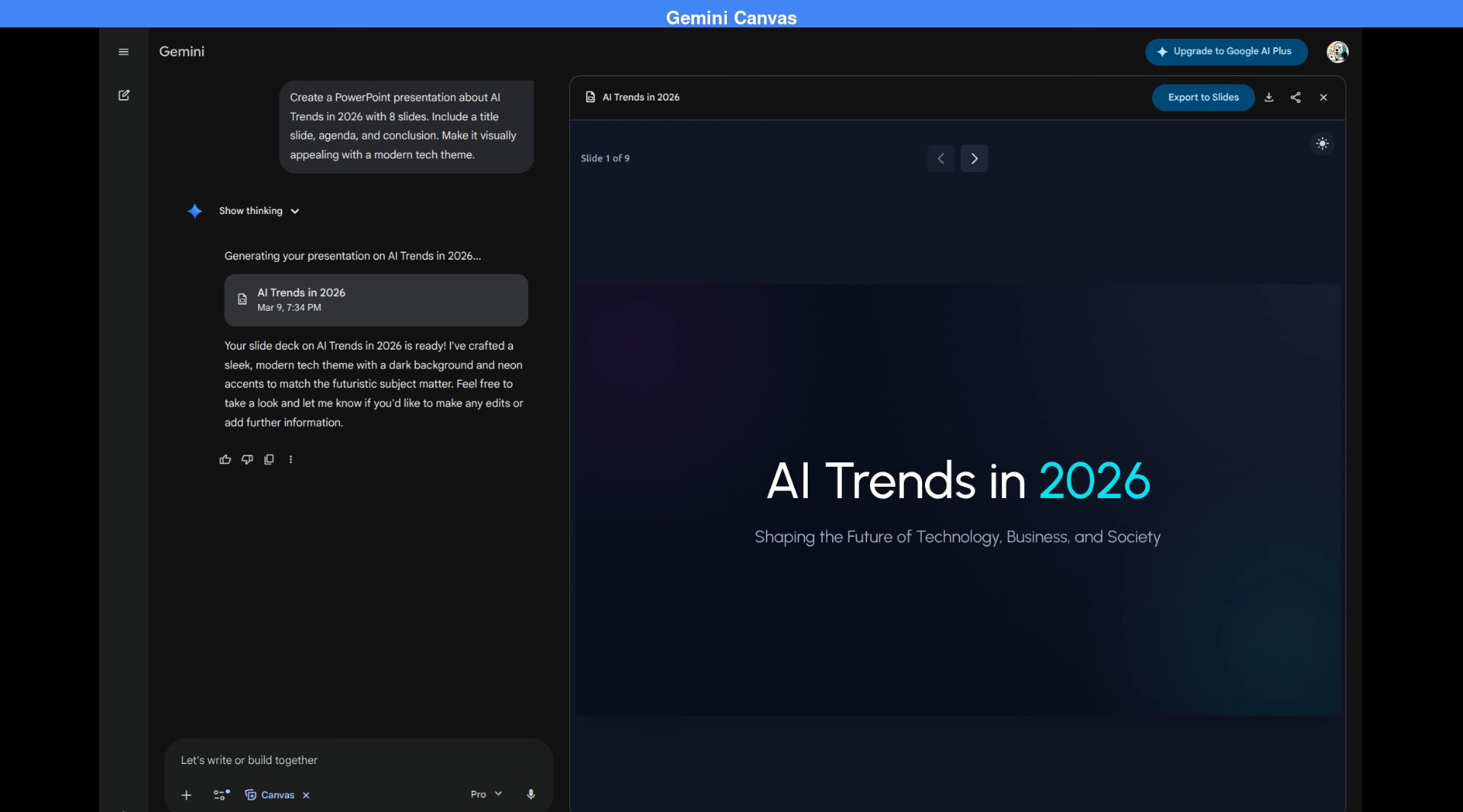
After roughly two minutes, the Canvas panel renders the first slide and a "Slide 1 of 9" navigator appears. The presentation is titled "AI Trends in 2026" -- using the prompt verbatim as the title.
What Gemini Produced: 9 Slides
Credit where it's due -- Gemini Canvas produces genuinely decent presentations. Here's what stood out:
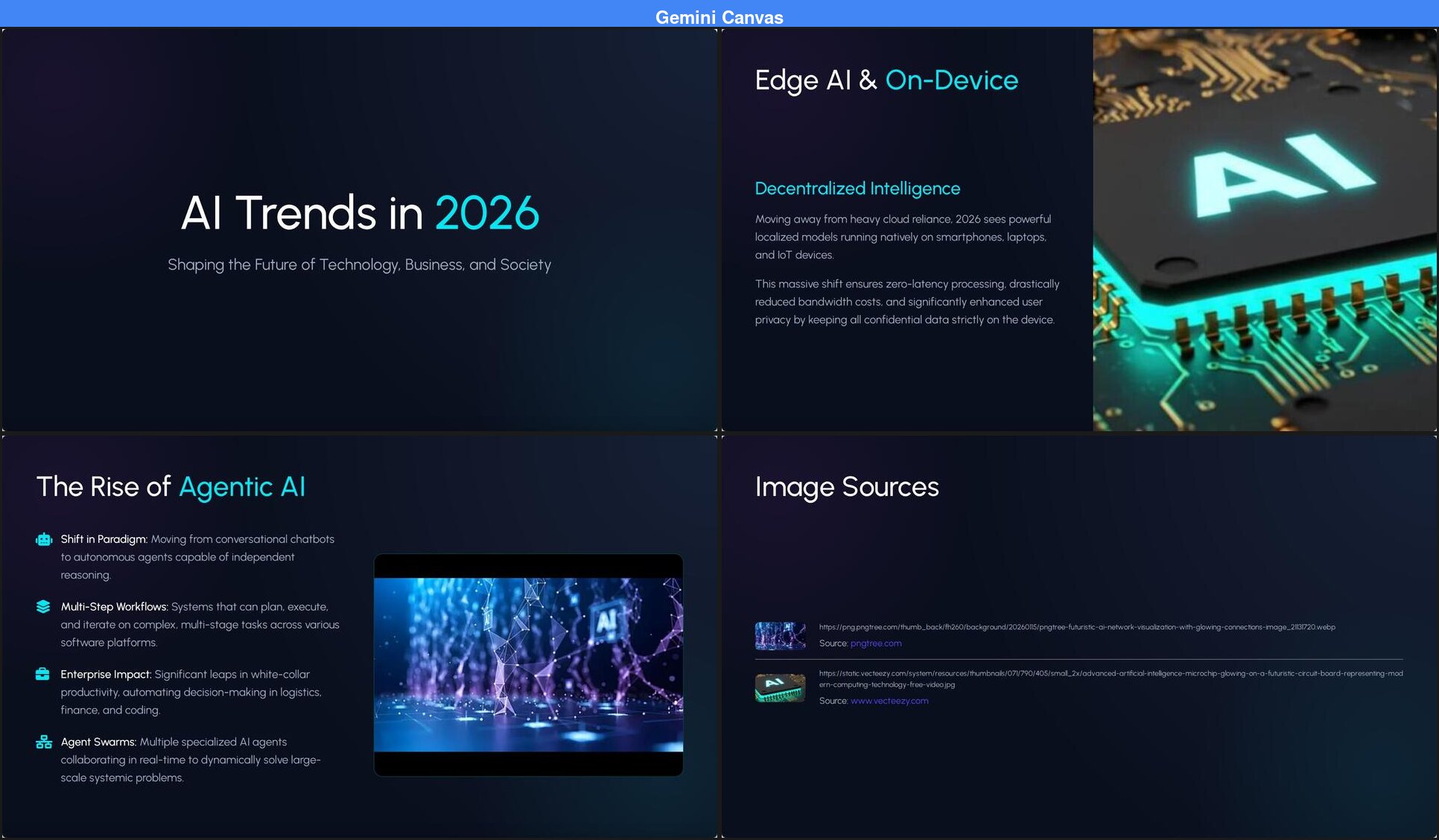
- Layout variety. Unlike ChatGPT's python-pptx output where every slide is identical, Gemini uses multiple different layouts: centered title pages, left-right splits, card grids, and full-width sections. No two slides look the same.
- Data visualization. Slide 5 includes a horizontal bar chart showing "Enterprise AI Adoption by Sector" with percentages for Tech & IT (95%), Finance (88%), Healthcare (78%), and Manufacturing (75%). This is a real chart, not just text describing data.
- Design consistency. The dark background with cyan/teal accents is maintained throughout. Typography is clean and readable. The overall aesthetic is polished.
- Google Slides integration. One-click "Export to Slides" sends the deck directly to Google Slides, where you can edit it with the full Slides editor. If you're already in the Google ecosystem, this is seamless.
Where It Falls Short
Despite the solid design, a few issues are hard to overlook:
- Only 2 images across 9 slides. Gemini pulled two stock photos from external sources (pngtree and vecteezy), but both are low quality — blurry and with visible cropping artifacts. The remaining 7 slides are text-only with icons. For a visual medium, that's sparse.
- No control over image selection. You can't choose which images appear or what style they should be. Gemini picks them automatically, and one of the photos had visible cropping artifacts (dark borders).
- No intent confirmation. Gemini doesn't ask who the presentation is for, what the purpose is, or what visual style you prefer. It goes straight from prompt to output. This means every presentation gets the same generic treatment regardless of whether it's for a board meeting or a classroom.
- Hallucinated contact information. The closing slide includes "www.aitrends2026.tech" -- a URL that doesn't exist. The presentation invented a fake website and presented it as real contact information.
- Content stays surface-level. The adoption percentages (95% Tech & IT, 88% Finance) look authoritative but aren't sourced. The talking points cover expected ground without citing specific companies, studies, or developments.
What a Purpose-Built Presentation Tool Produces
For comparison, we ran the same topic through PageOn.ai, a dedicated AI presentation tool.
The first difference is the input flow. After entering "AI Trends in 2026," PageOn doesn't immediately start generating. Instead, it opens a four-tab preference panel: Theme, Images, Audience, and Purpose. Each tab offers multiple-choice options you can click through in a few seconds -- this isn't a tedious Q&A loop, just quick selections that tell the tool what kind of presentation you actually need.
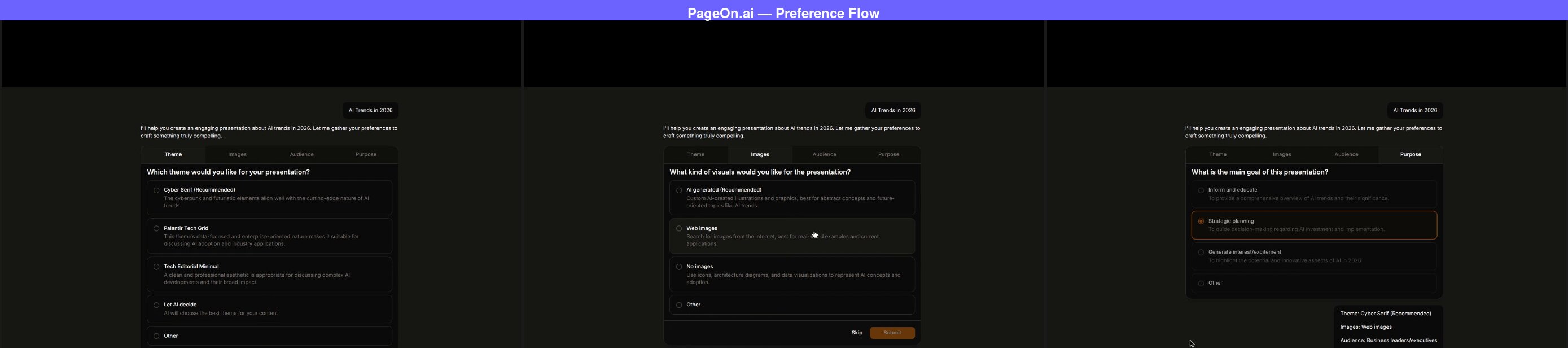
We selected "Cyber Serif" as the theme, "Web images" for visuals, "Business leaders/executives" as the audience, and "Strategic planning" as the purpose. After confirming, PageOn searched the web for relevant images and presented a grid for us to choose from -- we picked the ones that best fit the topic.
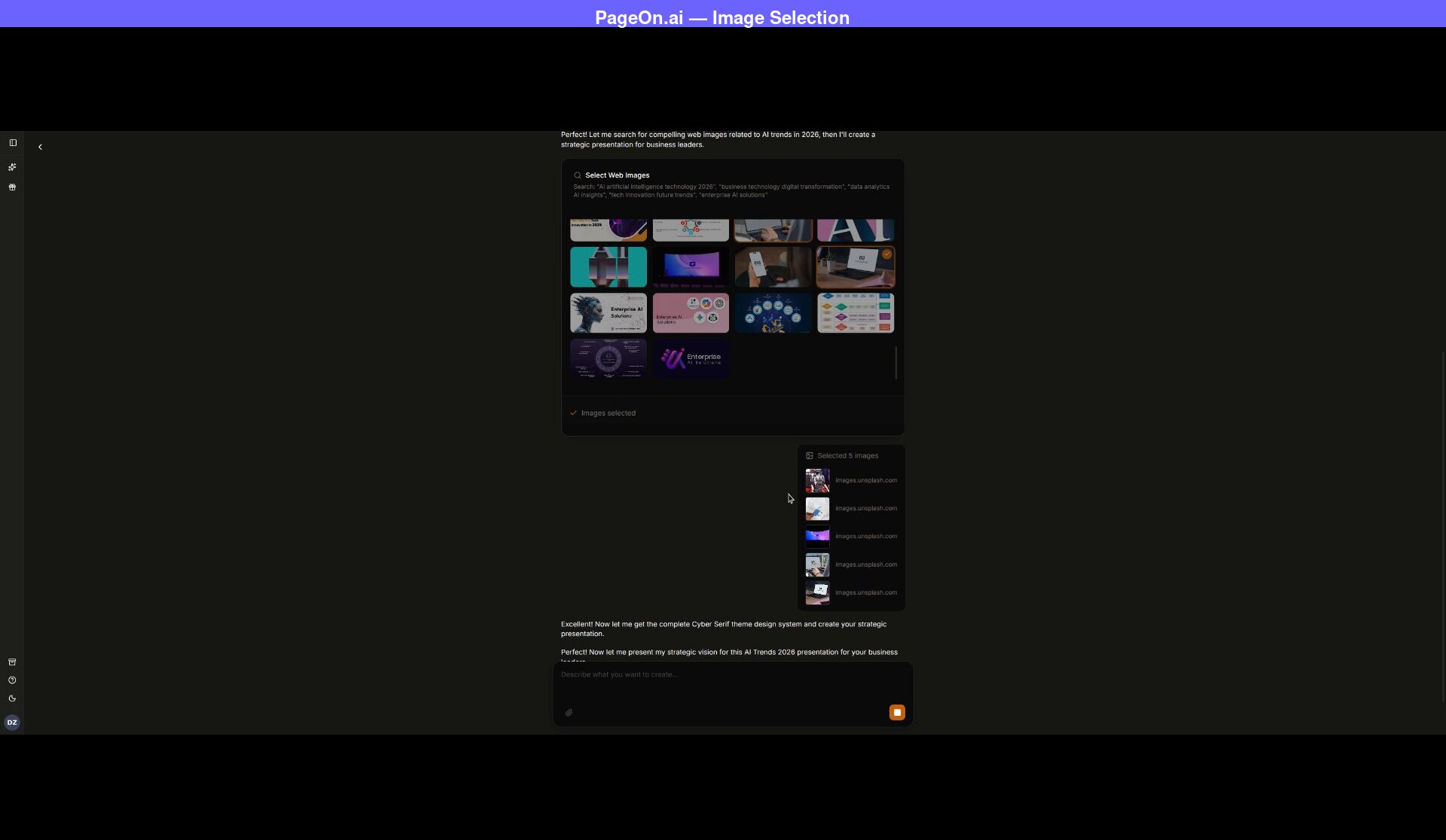
PageOn then showed a full outline -- slide-by-slide breakdown with theme description and format details -- before generating anything. After clicking "Confirm," it delivered an 8-slide deck in about two minutes.
What PageOn Produced: 8 Slides
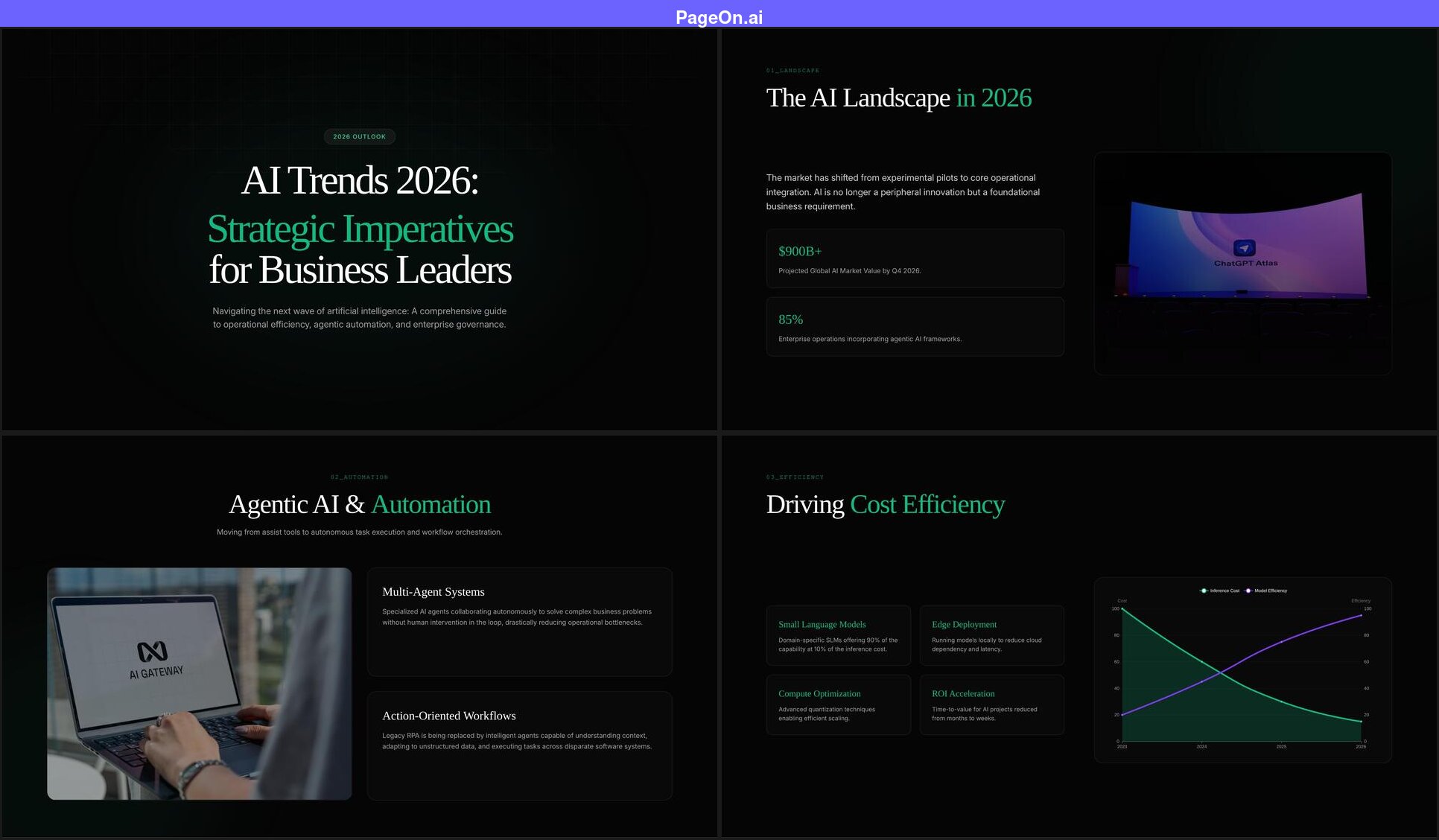
Several differences are immediately visible:
- The title is tailored to the audience. Instead of repeating the prompt ("AI Trends in 2026"), PageOn generated "AI Trends 2026: Strategic Imperatives for Business Leaders" -- because it knew the audience was business leaders and the purpose was strategic planning. The title reflects the intent, not just the topic.
- 5 out of 8 slides have real photographs. Because we selected "Web images" and chose specific photos, the visual density is much higher. Every image was one we deliberately picked.
- Data visualization with context. Slide 4 includes a line chart showing "Inference Cost" declining while "Model Efficiency" rises from 2023 to 2026, with four supporting cards (Small Language Models, Edge Deployment, Compute Optimization, ROI Acceleration). The chart tells a story the text supports.
- Structured section numbering. Each slide has a section label (01_LANDSCAPE, 02_AUTOMATION, etc.) that creates a clear narrative arc from landscape overview to strategic implications to next steps.
- More specific content. Slides reference EU AI Act compliance, federated learning, vector-ready data architectures, and RAG (retrieval-augmented generation). The content goes deeper than general talking points.
One Feature Gemini Can't Match: In-Browser Editing
After PageOn generates your deck, you can click on any text element and edit it directly in the browser -- no export required. A formatting toolbar appears with font size, bold, italic, and other options. Want to change a headline or tweak a statistic? Just click and type.
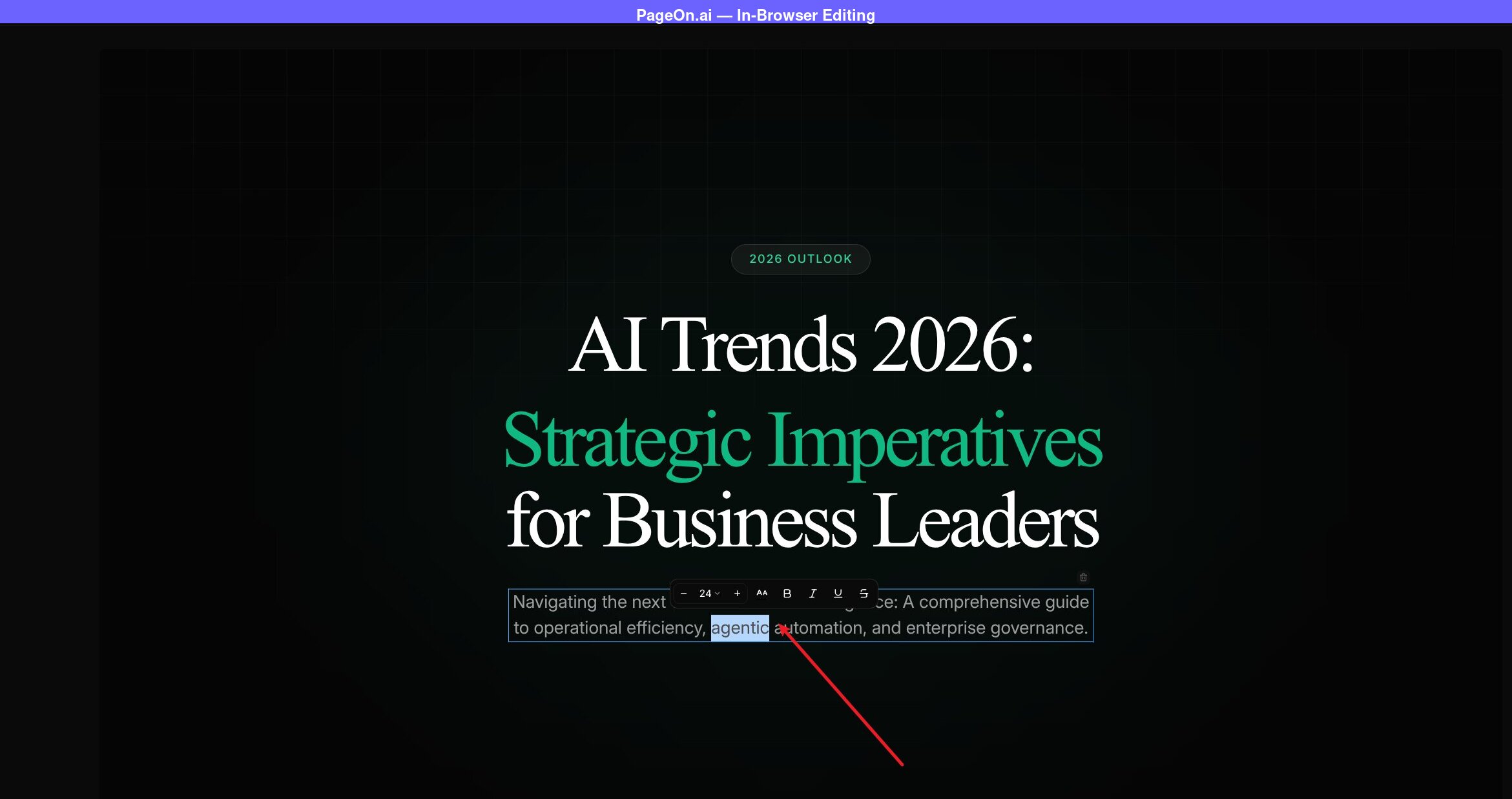
Gemini's approach requires exporting to Google Slides first, then editing there. That's not a bad workflow -- Google Slides is a capable editor -- but it adds an extra step. With PageOn, you can fix typos, adjust messaging, or rewrite sections right where the slides were generated, then export to PPTX, PDF, or PNG when you're satisfied.
Side-by-Side: The Key Differences
Gemini's slides are clean but text-heavy -- 7 out of 9 slides have no photographs. PageOn's 8 slides include 5 real photos, a line chart, and varied card layouts. The difference in visual density is immediately apparent when scrolling through both decks side by side.
The title difference is also telling. Gemini used the prompt almost verbatim: "AI Trends in 2026: Shaping the Future of Technology, Business, and Society." PageOn generated "AI Trends 2026: Strategic Imperatives for Business Leaders" -- because it knew the audience was business executives and the purpose was strategic planning. The extra 15 seconds spent on preferences produced a title that actually speaks to the intended audience.
The Hallucination Problem
Both tools fabricated information on their closing slides. Gemini invented a fake website (www.aitrends2026.tech). PageOn generated fake CTA buttons ("Schedule Executive Briefing," "Download Framework") and a fictional email address (strategy@enterprise-ai.io). Neither link or contact actually exists.
This is worth noting because it's a shared weakness of AI-generated presentations -- the closing slide often includes contact details or calls-to-action that the AI simply makes up. Always review the last slide carefully and replace fabricated information with your own.
Similarly, both tools produced statistics that aren't sourced. Gemini's "95% Tech & IT adoption" and PageOn's "$900B+ market value" both look authoritative but neither cites a study. If you're presenting to a detail-oriented audience, you'll want to verify or replace these numbers.
Honest Assessment: When to Use Gemini for Presentations
Gemini Canvas is a significant step up from ChatGPT's presentation capabilities. Where ChatGPT generates identical slides through python-pptx code, Gemini produces varied layouts, includes data visualization, and integrates into Google's ecosystem seamlessly. It's a real presentation tool, not a workaround.
Gemini works well for:
- Quick drafts in the Google ecosystem. If you live in Google Workspace, the one-click Export to Slides is hard to beat. Generate a starting point in Gemini, refine in Slides -- a clean workflow.
- Internal presentations. Team updates, project summaries, or meeting decks where visual polish matters less than content structure.
- Brainstorming. Gemini's conversational interface lets you iterate: "Make slide 3 more data-focused" or "Add a slide about risks." This back-and-forth is natural for a chatbot.
You'll want a dedicated tool when:
- The audience matters. A board presentation and a classroom lecture need different tones, structures, and visual approaches. Gemini treats every presentation the same because it doesn't ask who it's for.
- You need image control. Gemini picks stock photos automatically. You can't choose them, replace them, or specify a visual style. If the images matter -- and in most professional presentations, they do -- this is a real limitation.
- You want to edit before exporting. Gemini requires an export step before you can change anything on the slides. Purpose-built tools like PageOn let you edit in-browser and export only when you're ready.
- Content depth is critical. For client presentations, conference talks, or investor decks where surface-level talking points won't cut it, a tool that searches live web sources before generating will produce more substantive content.
Quick Comparison
| Gemini Canvas | PageOn.ai | |
|---|---|---|
| Intent confirmation | None | Theme, images, audience, purpose |
| Layout variety | Medium | High |
| Image control | None (auto-selected stock photos) | Full (choose from web image grid) |
| Visual density | Low (2 photos in 9 slides) | High (5 photos in 8 slides) |
| In-browser editing | No (export to Slides first) | Yes (click to edit any element) |
| Export options | Google Slides, PDF | PPTX, PDF, PNG |
| Hallucination on closing slide | Fake URL | Fake CTA buttons |
| Free tier | 5 Pro msgs/day | 1 project, 10 msgs |
| Paid from | $19.99/mo | $7.49/mo (annual) |
FAQ
Can Gemini make presentations?
Yes. Gemini Canvas can generate complete slide decks from a text prompt in about two minutes. The output includes varied layouts, a consistent design theme, and basic data visualization (bar charts). You can export the result directly to Google Slides for further editing. The presentations are noticeably better than what ChatGPT produces -- Gemini uses a proper design system rather than generating slides through Python code.
Is Gemini good for presentations?
Gemini is good for quick presentation drafts, especially if you're already in the Google ecosystem. The layout variety and design consistency are genuine strengths. However, it has limitations: no audience or purpose customization, minimal image content (2 photos across 9 slides in our test), and no control over which images are used. For professional or client-facing presentations where visual impact and content depth matter, a dedicated presentation tool will give you better results with only marginally more effort.
How does Gemini compare to ChatGPT for presentations?
Gemini Canvas is significantly better than ChatGPT for presentations. ChatGPT generates .pptx files through Python code (python-pptx), producing identical layouts on every slide with no images, charts, or visual variety. Gemini uses a design engine that creates varied layouts, includes data visualization, and maintains a cohesive theme. The export-to-Google-Slides workflow is also smoother than ChatGPT's downloadable .pptx approach. If you're choosing between the two general-purpose AI tools for presentations, Gemini is the clear winner.
Can I edit Gemini presentations?
Not directly in Gemini. You can ask Gemini to make changes through conversation ("Make slide 3 more concise"), but to manually edit individual elements, you need to click "Export to Slides" first and edit in Google Slides. This is a capable workflow but adds an extra step compared to tools that let you edit slides in-browser immediately after generation.
See how Gemini Canvas compares to six other AI tools in our full roundup of 7 AI presentation makers.
The Bottom Line
Gemini Canvas has raised the bar for what general-purpose AI can do with presentations. The days of identical text-only slides from ChatGPT are over -- Gemini produces real, varied, visually coherent decks that you can actually present. The Google Slides integration is seamless, and the conversational editing is natural.
The gap between Gemini and a dedicated presentation tool isn't about design quality -- it's about workflow control. Gemini gives you what it thinks you want. A purpose-built tool asks what you actually need, lets you choose your visuals, and gives you direct editing access before you export. For some presentations, that difference won't matter. For others, it's everything.
If you want to see how the same topic turns out in a tool designed specifically for presentations, try PageOn.ai with your own topic and compare the results.